3ds max -> Unity -> iOS
I put together this little guide for anyone who'd like to try a 3D model made with 3ds max inside Unity, and from there on their own iPhone.
> Archived article from 2017, from the old nutellino.it: commands and versions may be out of date.
> Machine translation from Italian: the original is here.

Hi everyone!
I put together this little guide for anyone who'd like to try a 3D model made with 3ds max inside Unity, and from there on their own iPhone.
Requirements:
- A Windows computer with 3ds max installed
- A Mac to be able to use Xcode
- An iPhone (preferably a 6 or newer)
3ds max
Let's start from a model created with 3ds max 2018: the first thing to do is export the project in FBX format.
With our project open in 3ds max, let's follow these steps
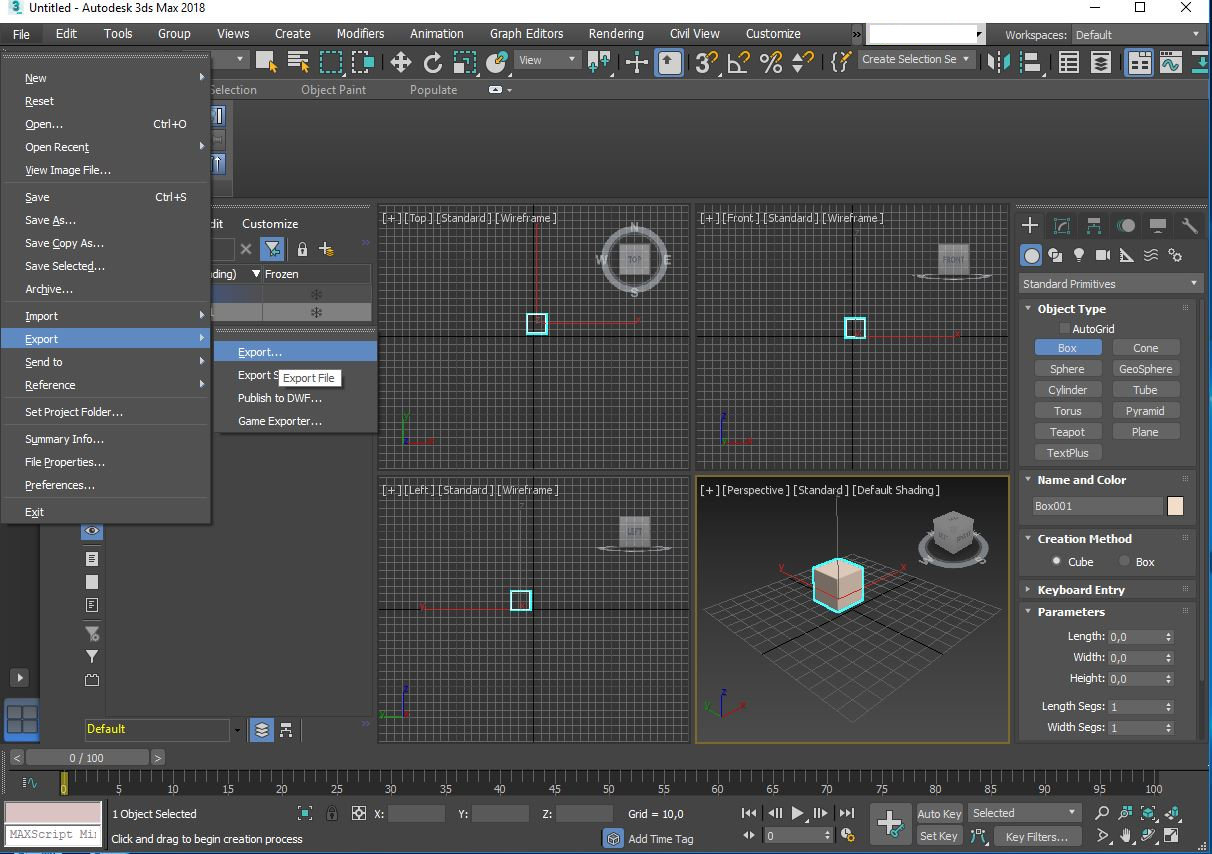
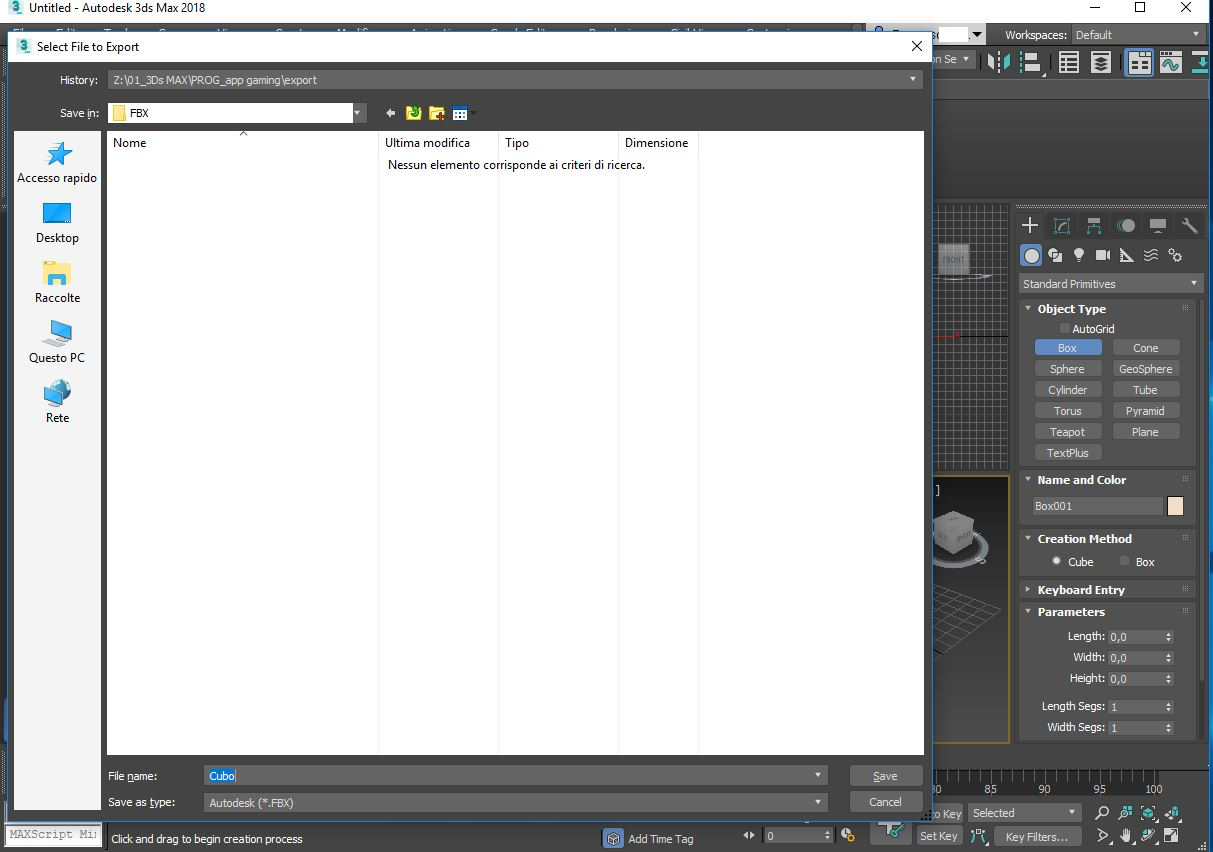
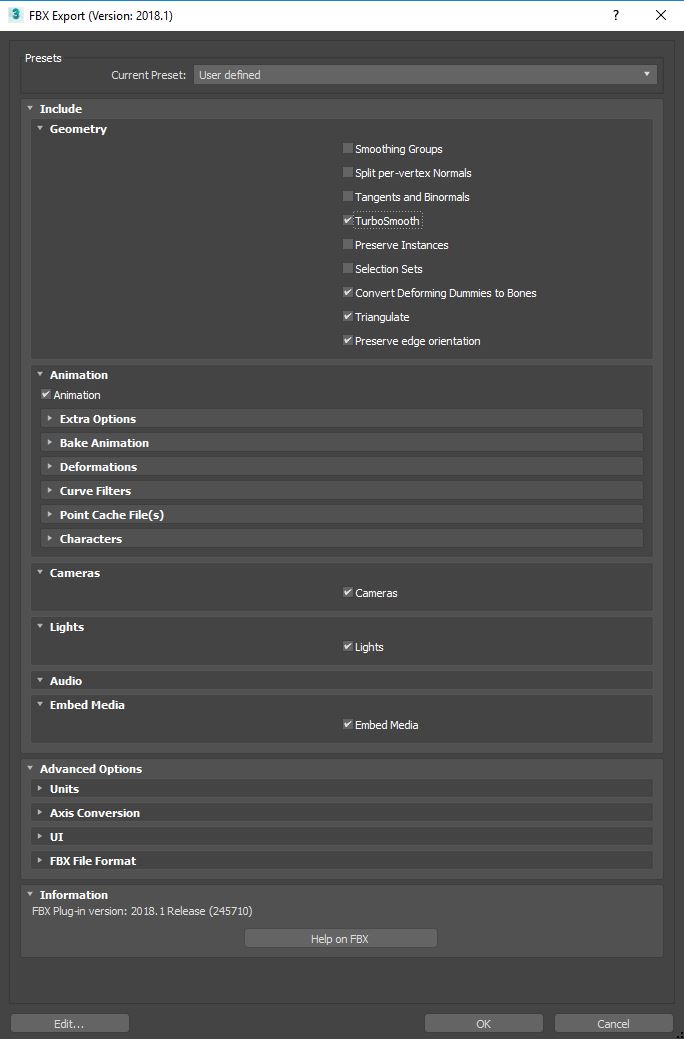
After that, with the FBX saved in a folder the Mac can reach, let's move on and open Unity with a demo project
Unity
To keep things simple, let's open Roll a Ball
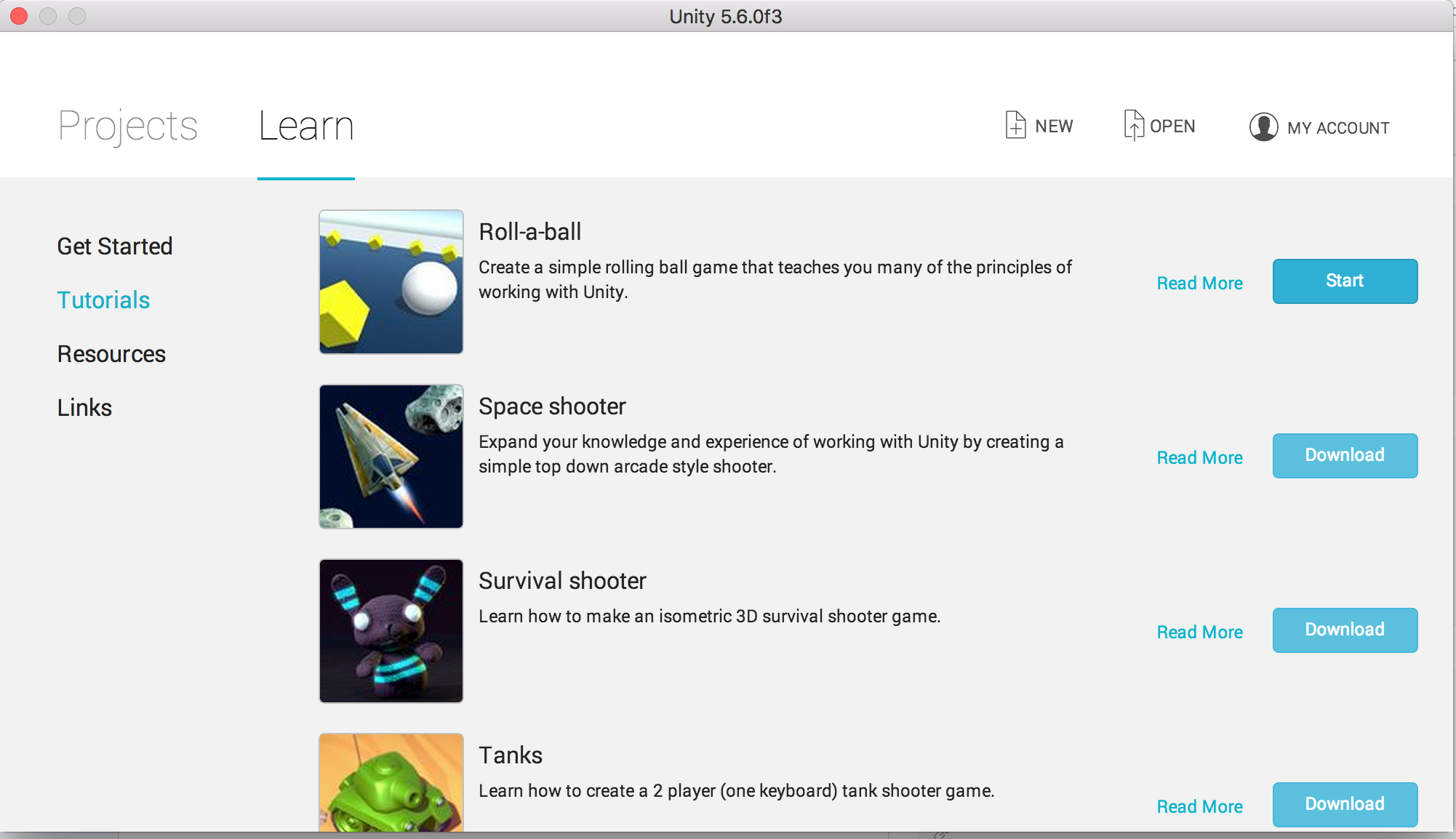
We go to the completed project of this tutorial
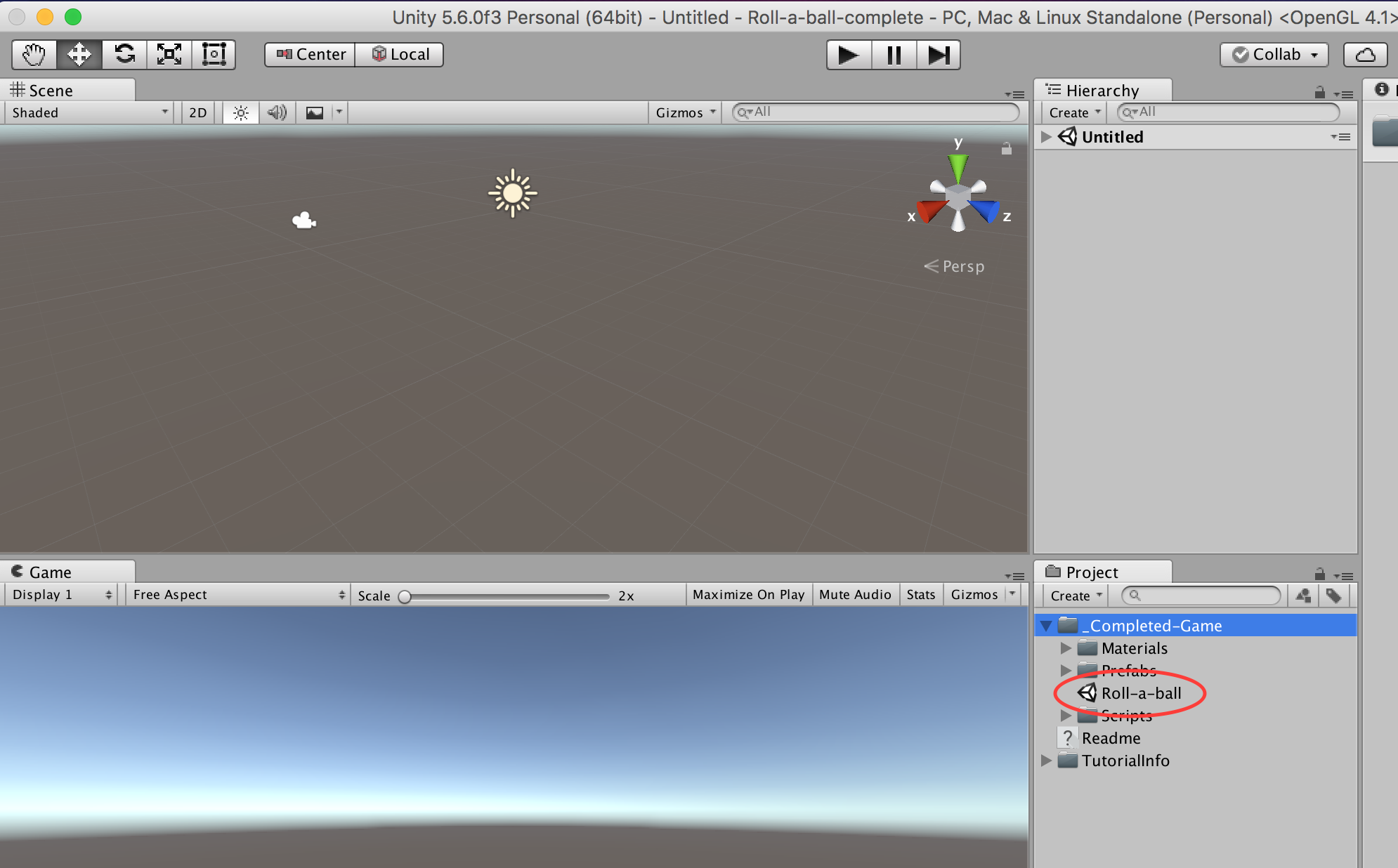
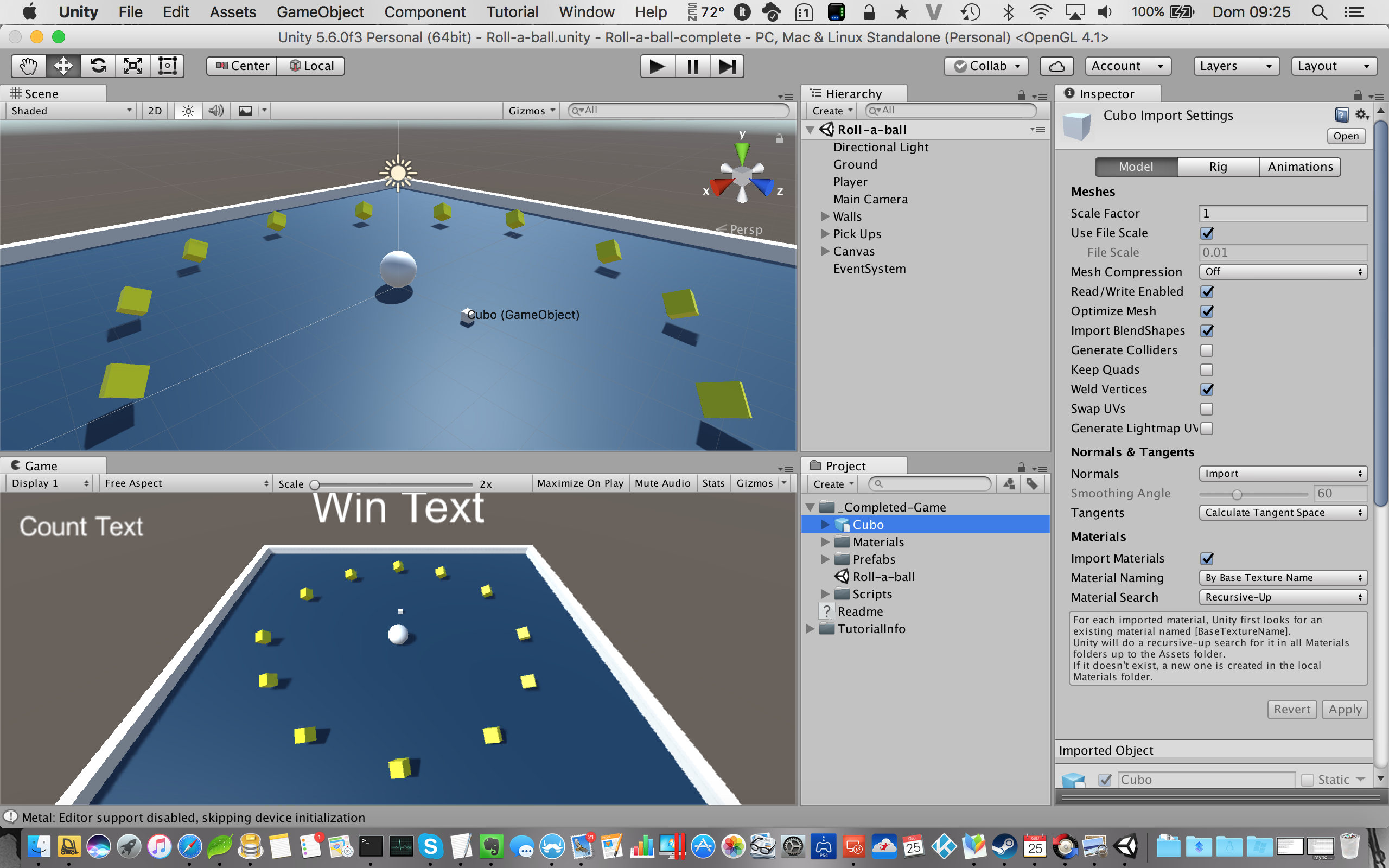
And we import the asset we just created, the FBX
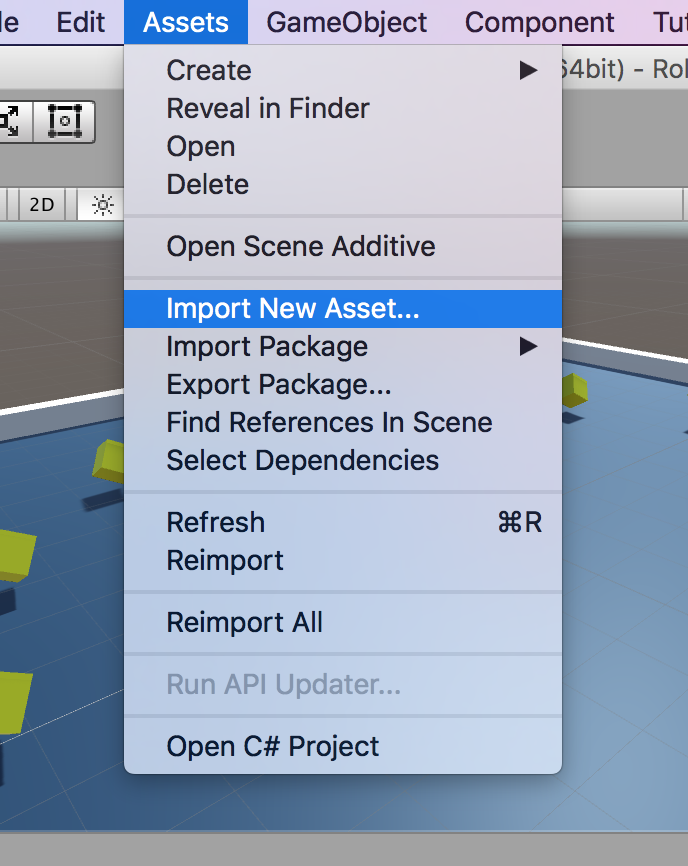
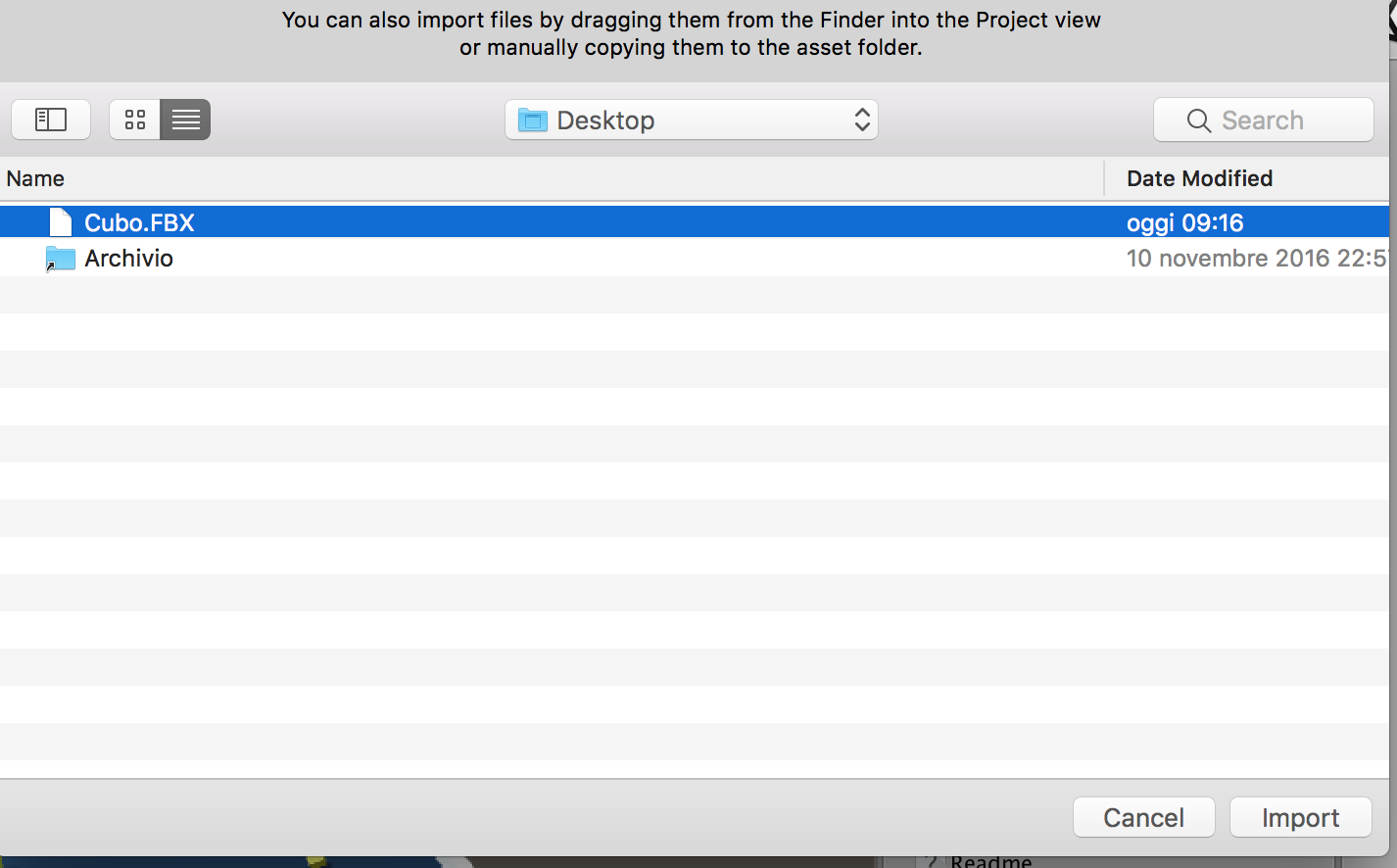
We'll end up with our gorgeous cube imported into Unity
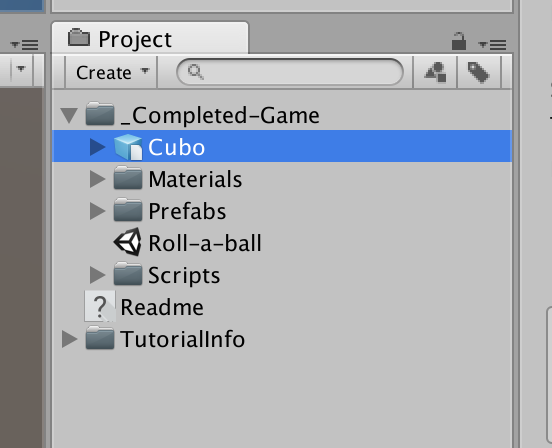
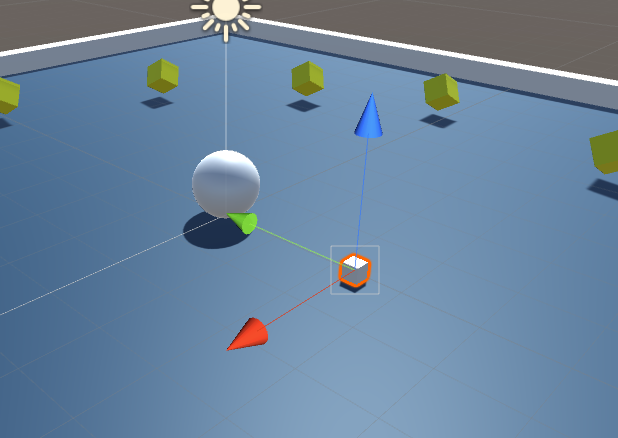
So we drag it into the scene
Exporting to Xcode
At this point we can go ahead and export our game to Xcode
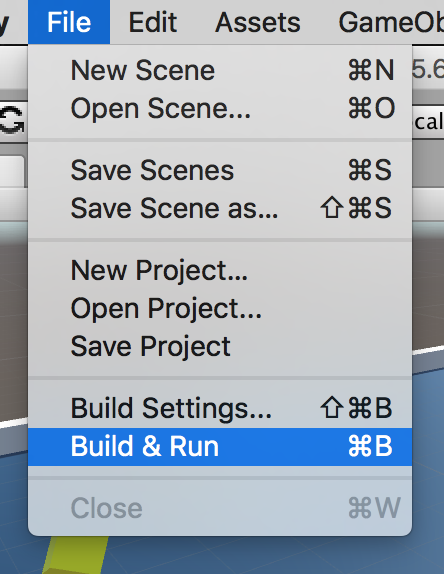
Open the menu and do Build & run
Now add the scene open in Unity with the Add Open scenes button
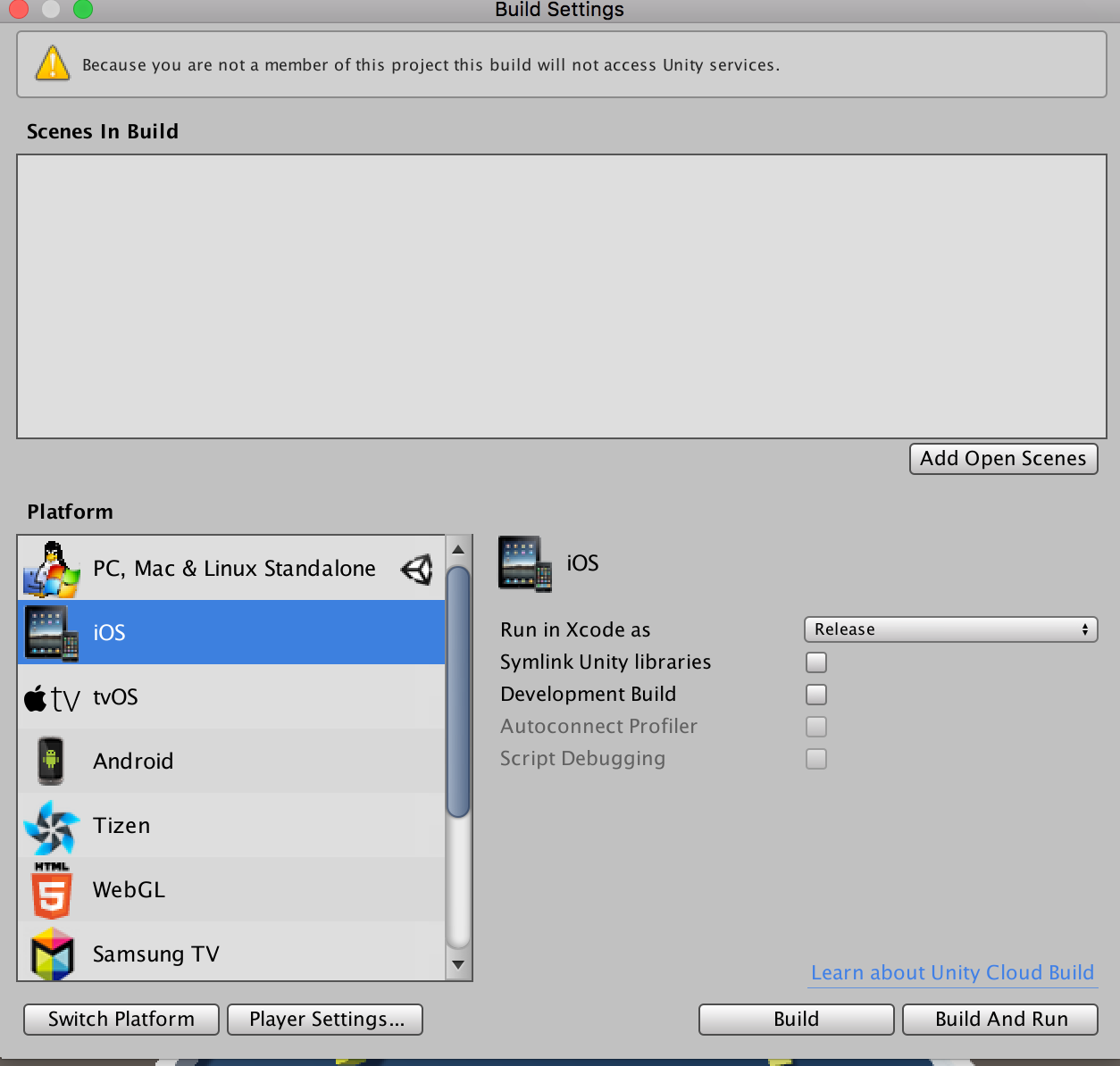
We'll be in this situation:
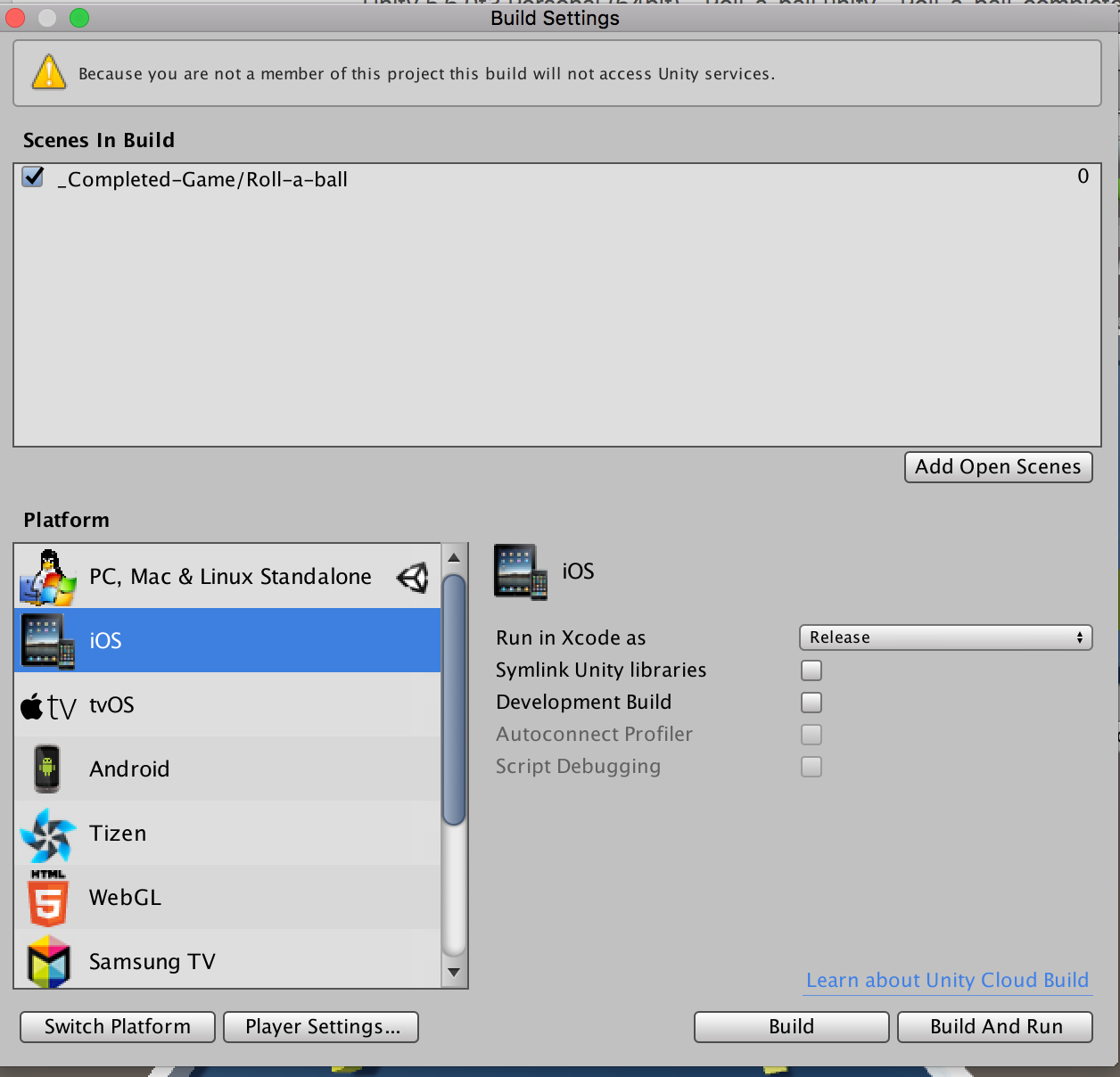
Now we can press Build and Run and pick an output folder for the Xcode project; to keep it simple, let's save it on the desktop
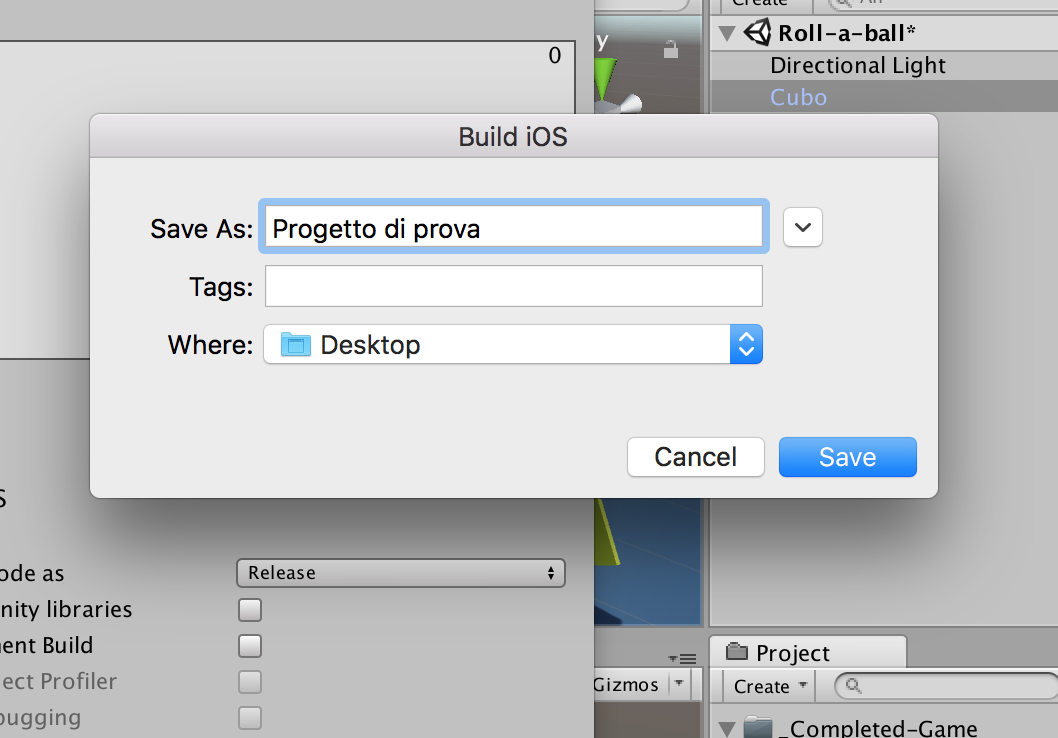
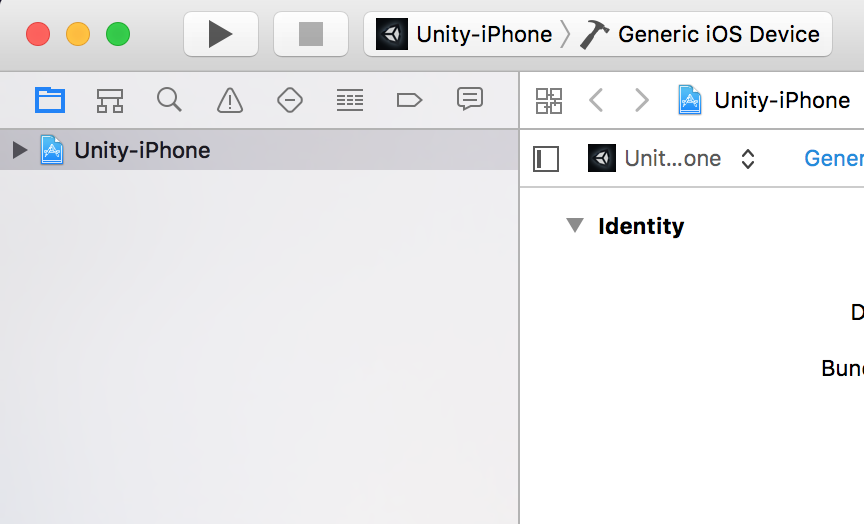
At this point we'll need to adjust a few settings in Xcode
Once Xcode is open, select the project
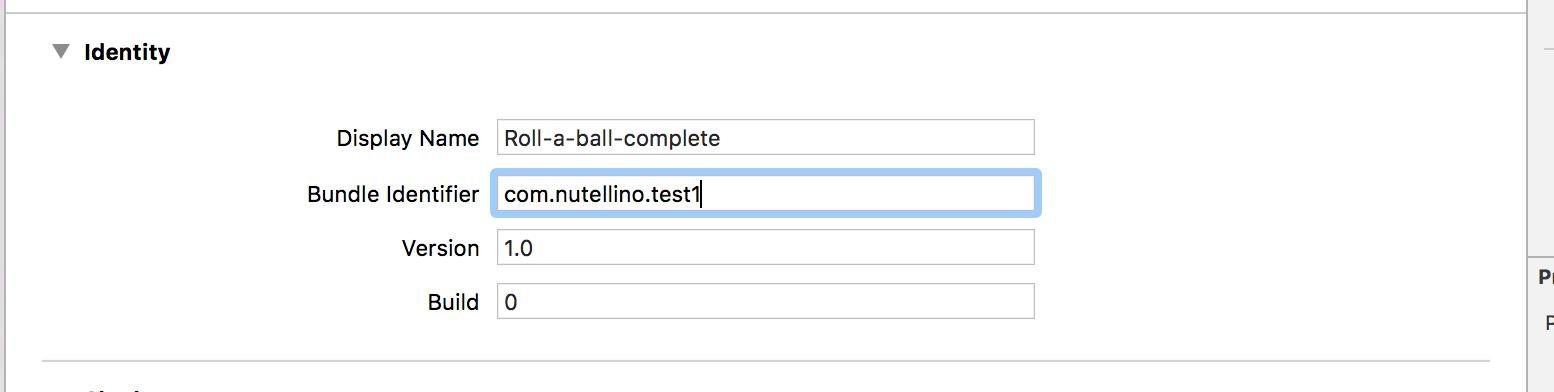
And change the Identity settings (let's make up a bundle identifier)
And let's select a Team (you just need to be logged into Xcode with your Apple ID)
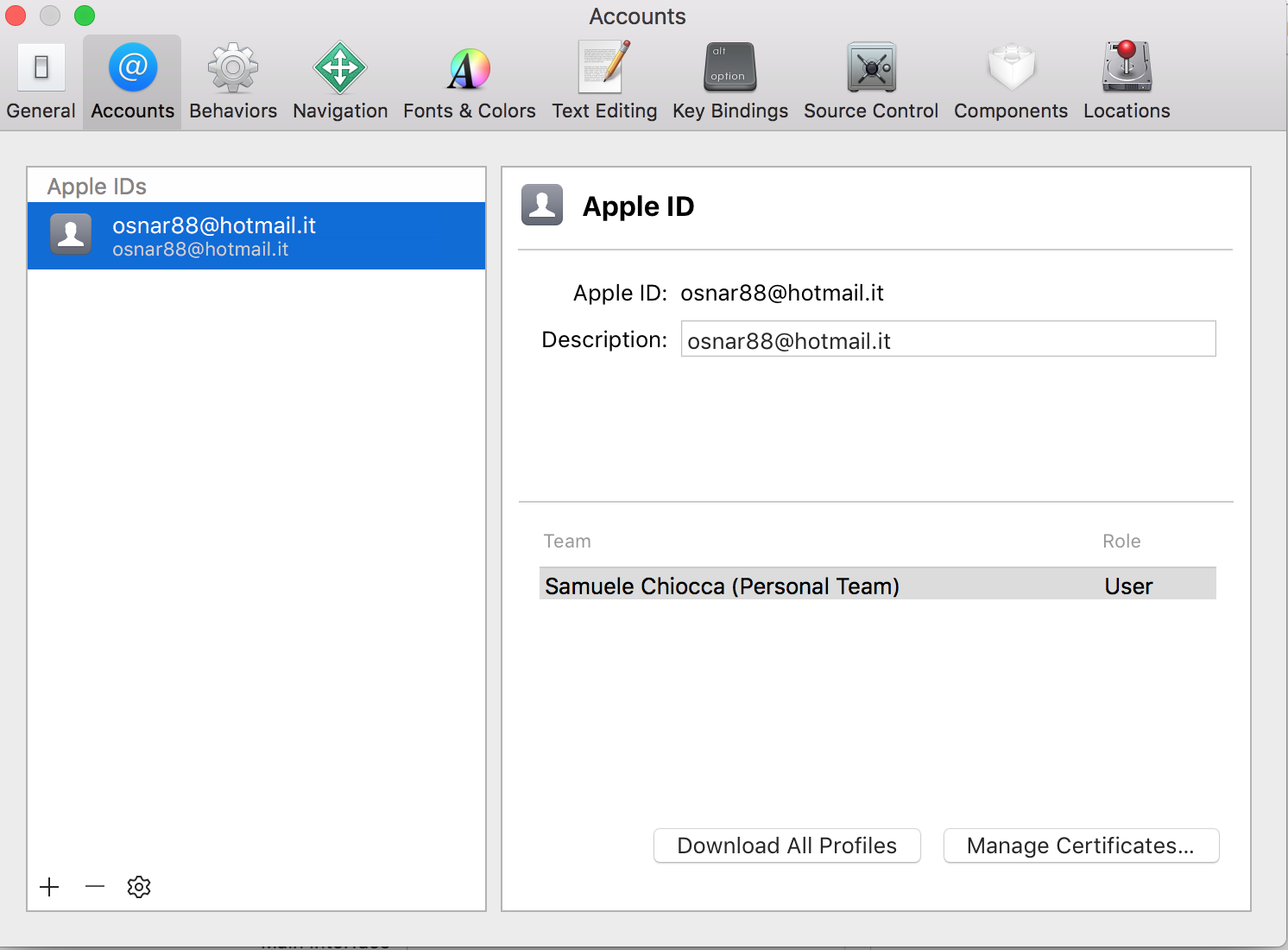
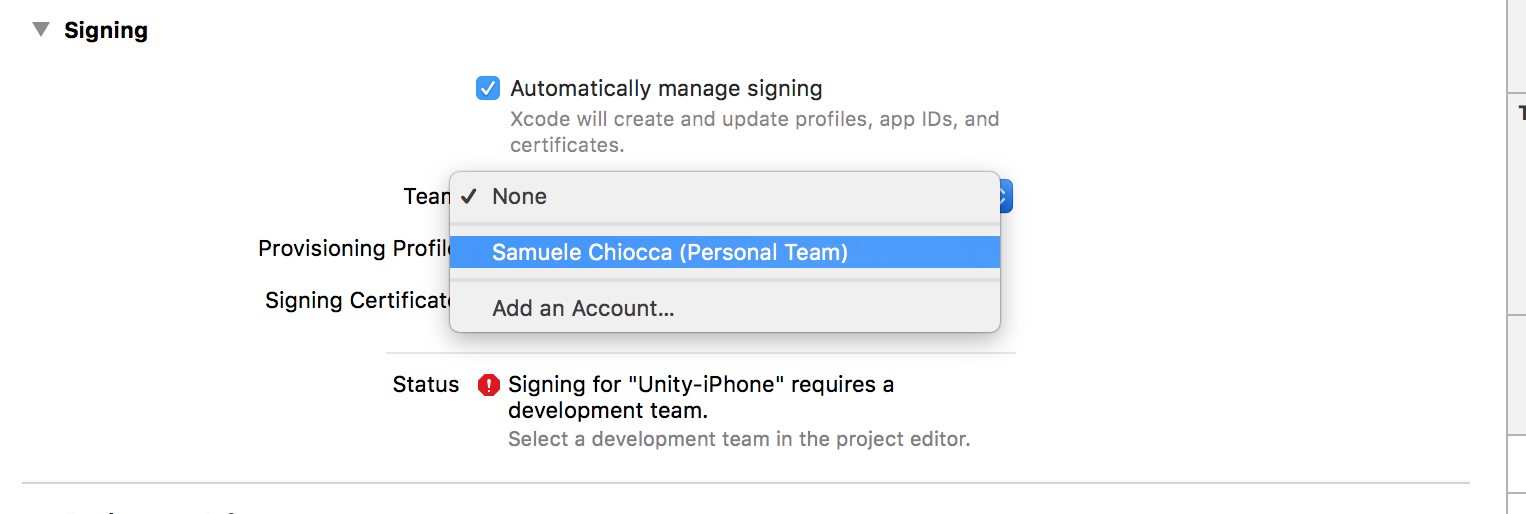
Deploy to iOS
Connect your iPhone to the Mac; once that's done, you'll be able to install the app on the phone, just press "play"
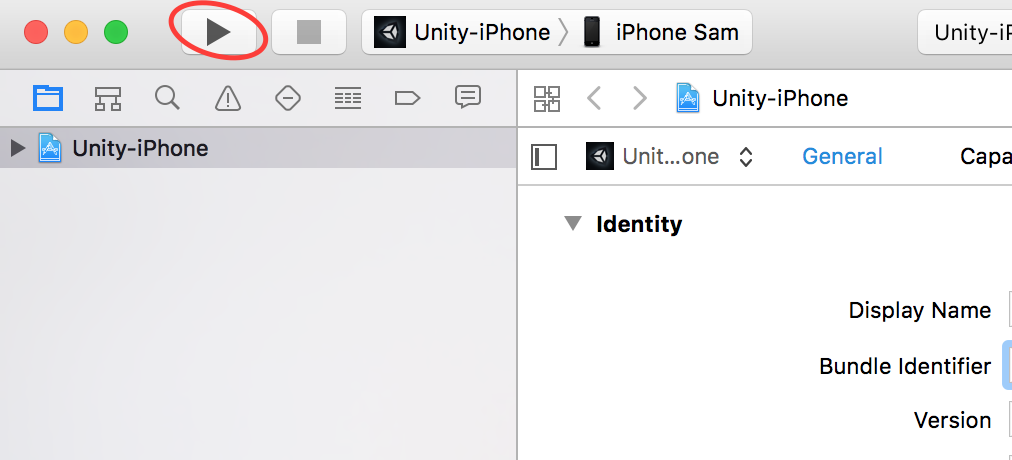
Wait for the process to finish
Once it's done, we'll have a shiny new app on our iPhone, which won't want to open.
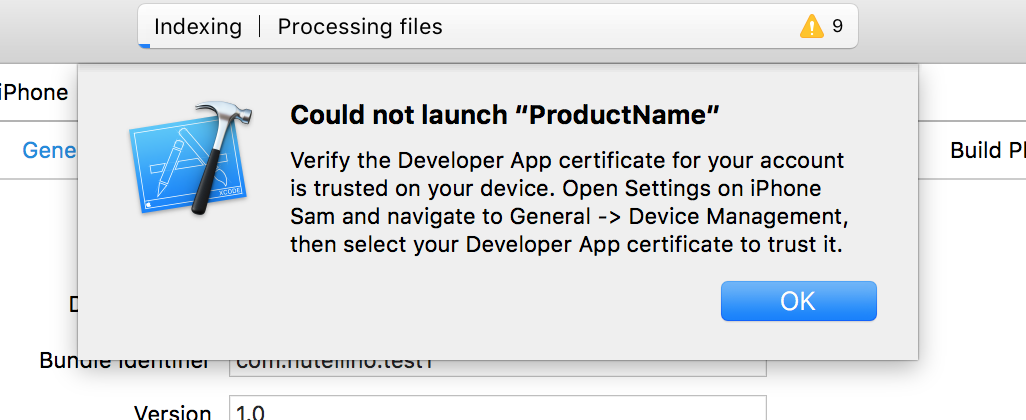
We'll have to go into Settings and trust the developer certificate (which is us)
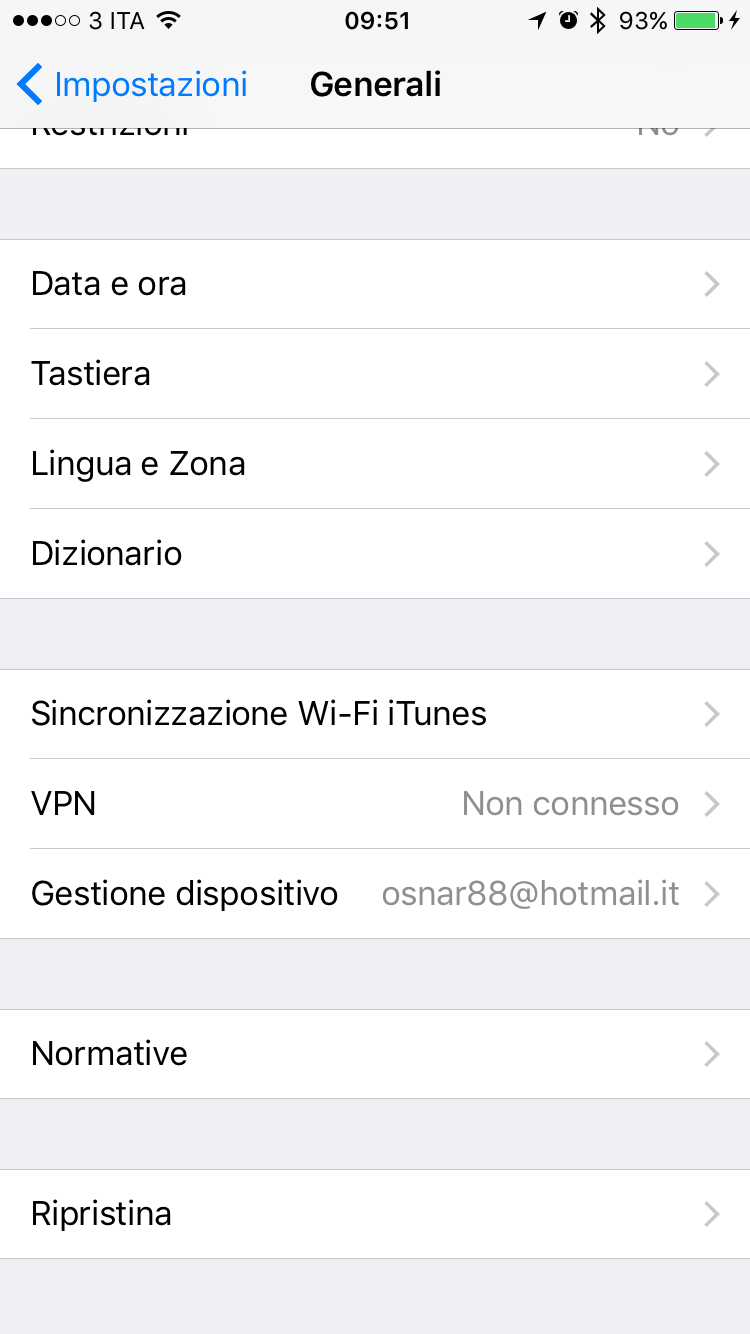
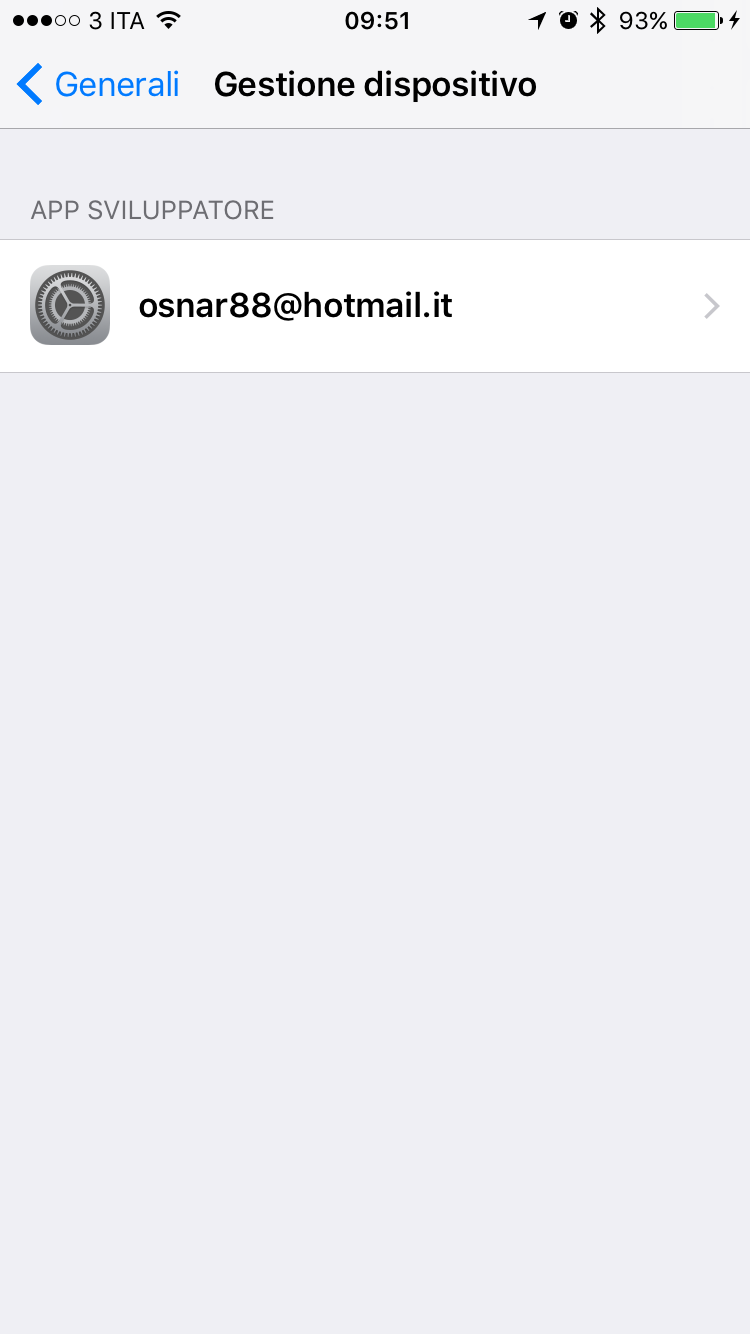
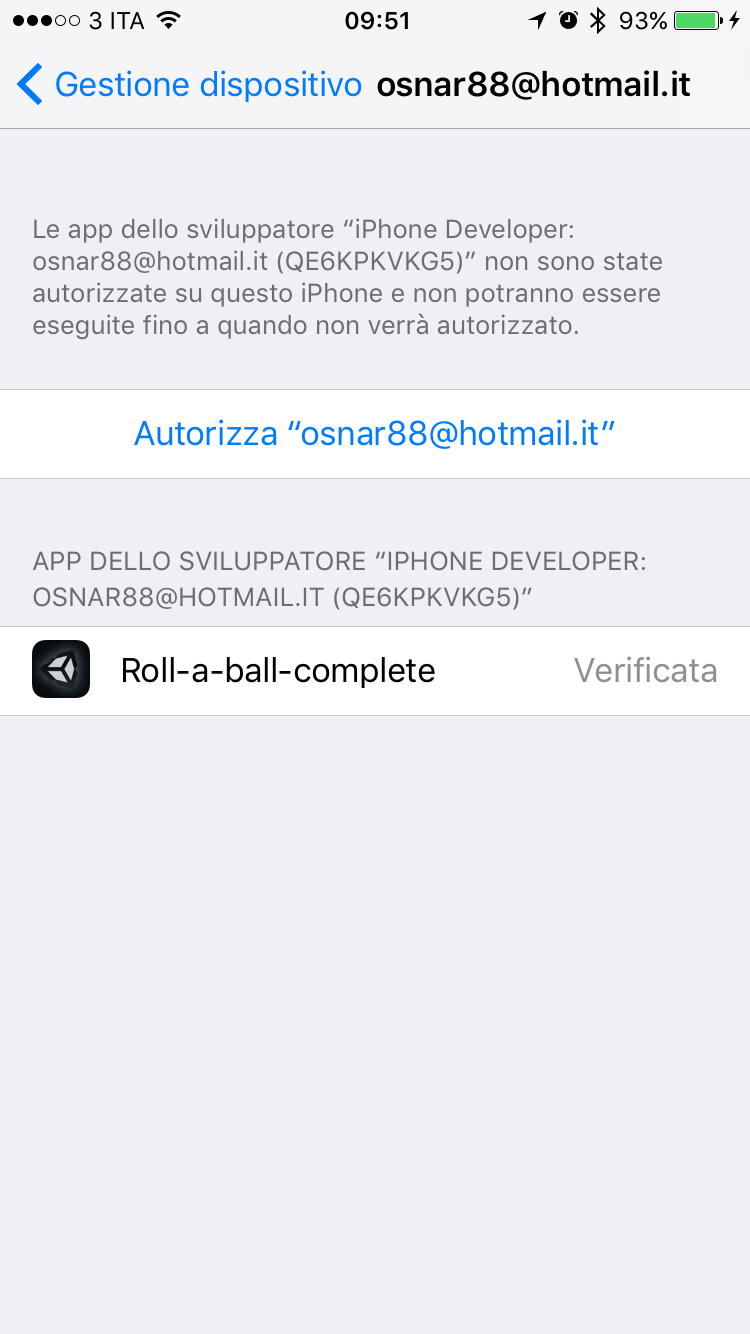
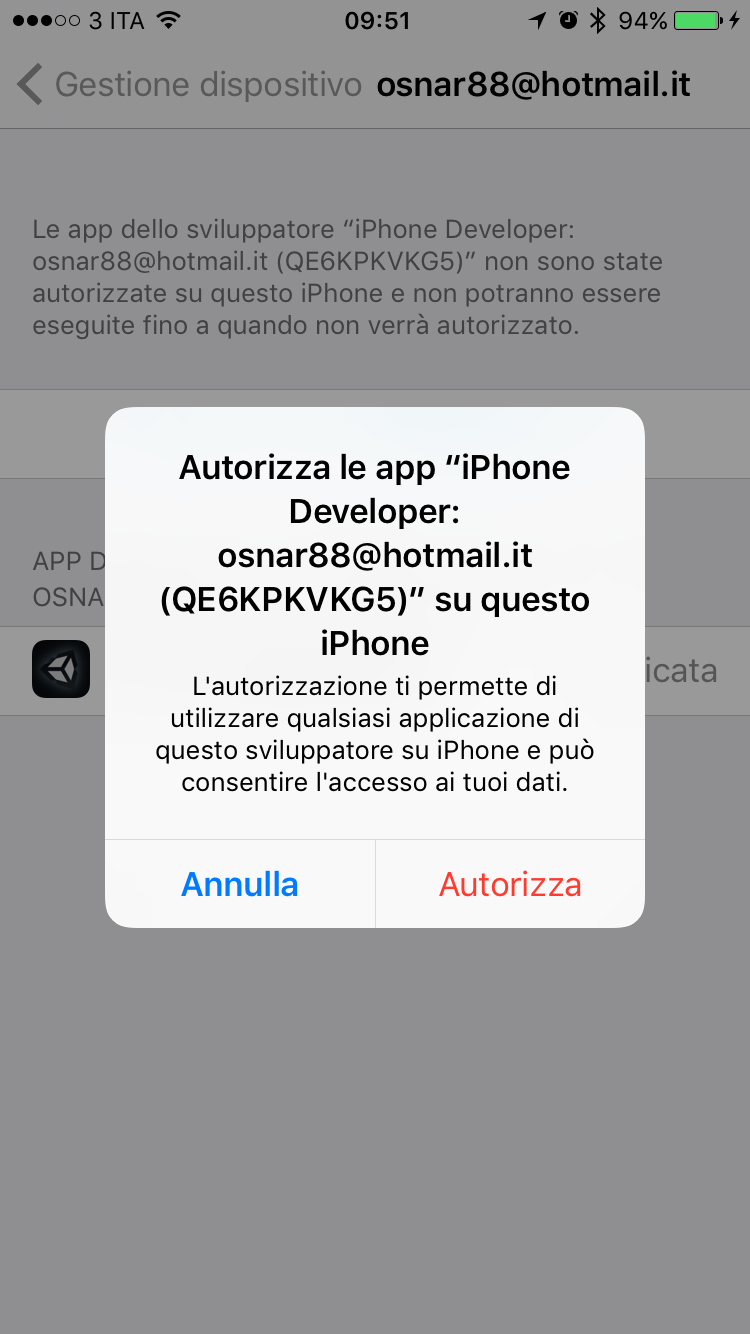
Once that's done, the app will finally start!
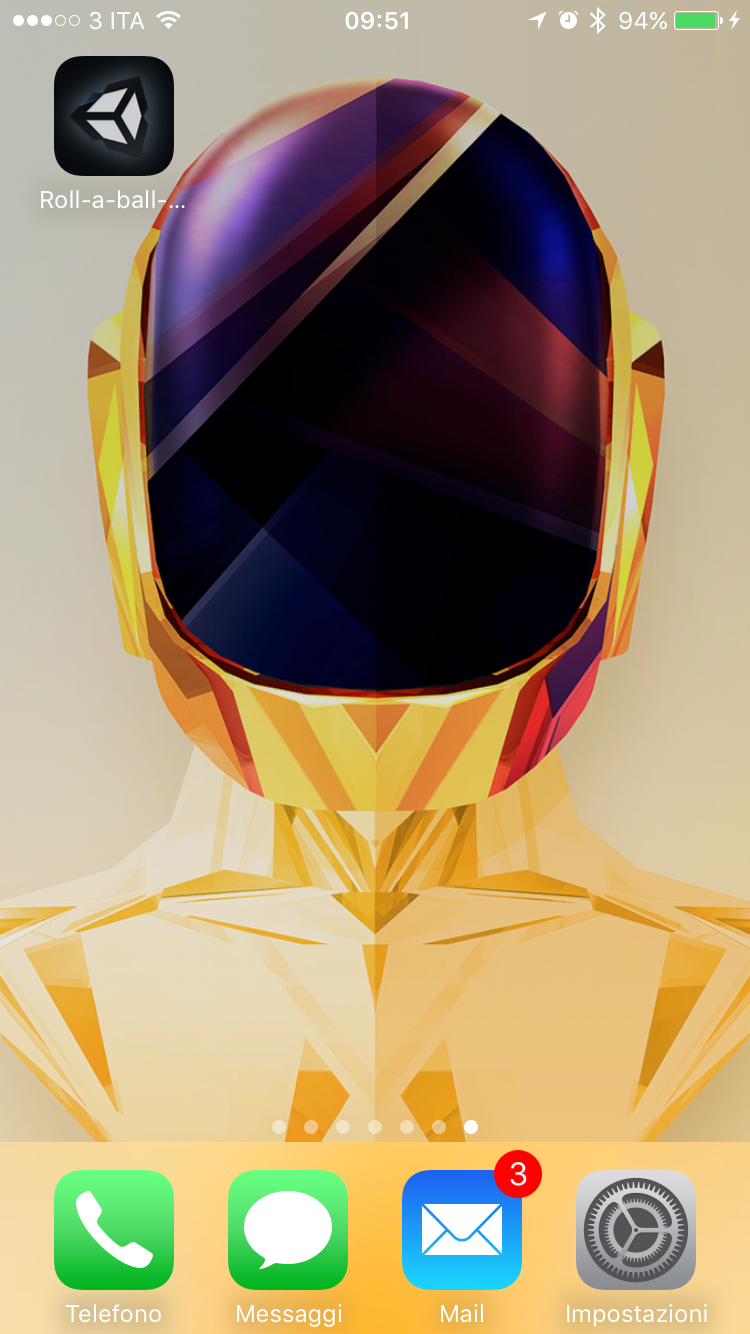
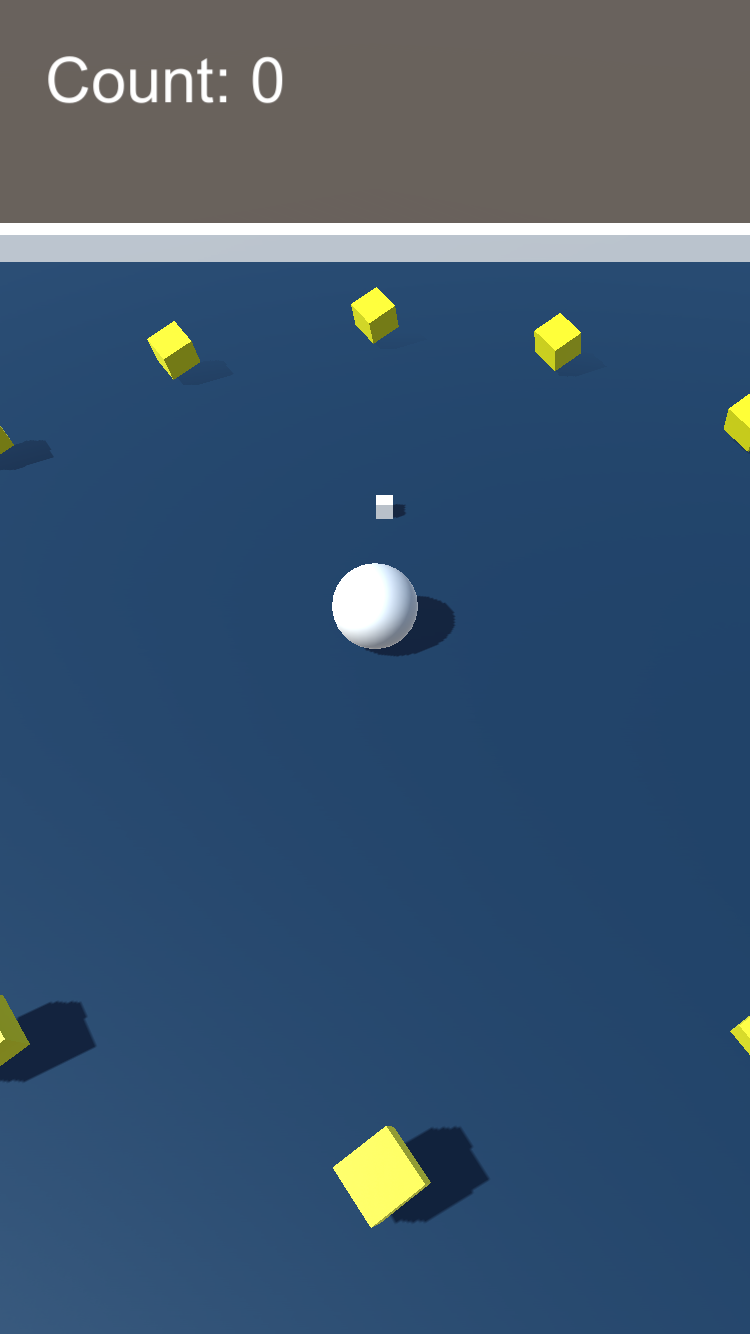
And as you can see, there's our little model inside!
😊
How to make the Roll a ball game interactive with the touchscreen
Good, the game is now loaded, but you can't actually play it.
We need to change a script and lock the rotation to landscape
Open the PlayerController file
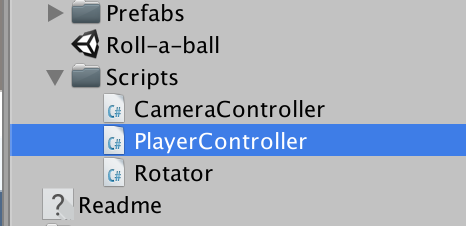
And replace the code with the following:
using UnityEngine;
using System.Collections;
using UnityEngine.UI;

public class PlayerController : MonoBehaviour {

	public float speed;
	public Text countText;
	public Text winText;

	private Rigidbody rb;
	private int count;

	//game world plane
	private Plane plane;

	void Start()
	{
		rb = GetComponent<Rigidbody>();
		count = 0;
		winText.text = "";
		SetCountText();

		//Create our game world plane
		//Our plane will pass through (0, 0, 0) in our game world and face up
		plane = new Plane(Vector3.up, Vector3.zero);

	}

	void FixedUpdate()
	{
		//keyboard inputs
		//       float move_horizontal = Input.GetAxis("Horizontal");
		//       float move_vertical = Input.GetAxis("Vertical");

		//check that we have at least 1 touch on screen
		if(Input.touchCount > 0)
		{
			//grab the first touch
			Touch myTouch = Input.GetTouch(0);

			//create a ray from that touch position through the camera plane
			var ray = Camera.main.ScreenPointToRay(myTouch.position);
			float ent;

			//check if our ray will intersect the game world plane
			//if yes, return true, set ent to the DISTANCE at which the ray intersects the plane
			//if no, return false, ent is zero
			if (plane.Raycast(ray, out ent))
			{
				//Get the point on the ray at distance 'ent'
				var hitPoint = ray.GetPoint(ent);

				//Add force to our rigidbody from it's position to the touch point
				//magnitude is set to 1 with 'normalized' to keep the speed multiplier consistent
				rb.AddForce((hitPoint - rb.position).normalized * speed);
			}

		}

		//keyboard input AddForce
		//       rb.AddForce(movement * speed);
	}

	void OnTriggerEnter(Collider other)
	{
		if (other.gameObject.CompareTag("Pick Up"))
		{
			other.gameObject.SetActive(false);
			count++;
			SetCountText();
		}

	}

	void SetCountText()
	{
		countText.text = "Count: " + count.ToString();
		if (count >= 8)
			winText.text = "YOU WON!";

	}

}
Then let's change the project settings, locking the rotation to Landscape:
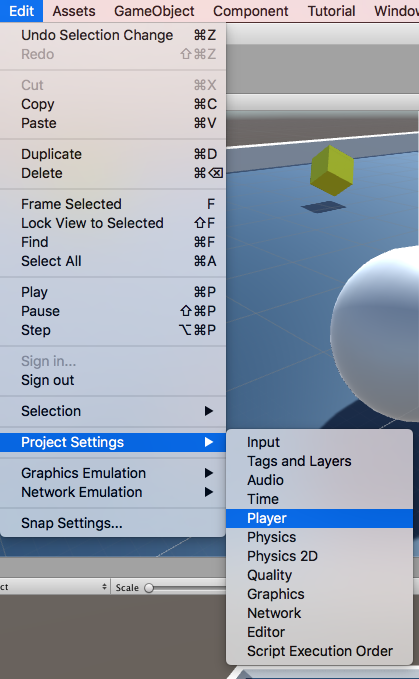
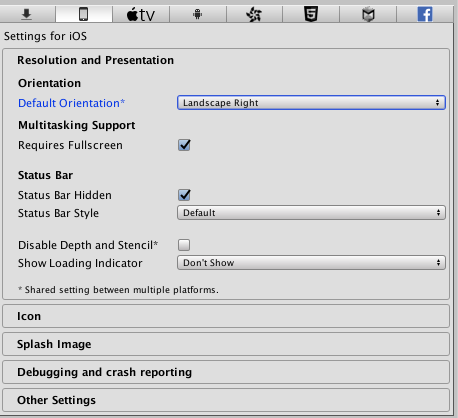
Now we can repeat the Build & Run procedure described above!
$ cat ~/archivio/un-modello-3d-da-3ds-max-a-unity-deploy-su-ios.md
WARNING: this file is from 2017.
I wrote it, but a me from a few years ago: it may no longer reflect what I think or what I can do.
NOTE: machine translation from Italian, the original is here.
Continue? [y/N]