Gitlab.com - CI/CD of a static website on Kubernetes
Good morning everyone, in this guide I'll show you an example of CI/CD for the deployment of a container holding a static html website. This example can easily be…
> Archived article from 2018, from the old nutellino.it: commands and versions may be out of date.
> Machine translation from Italian: the original is here.
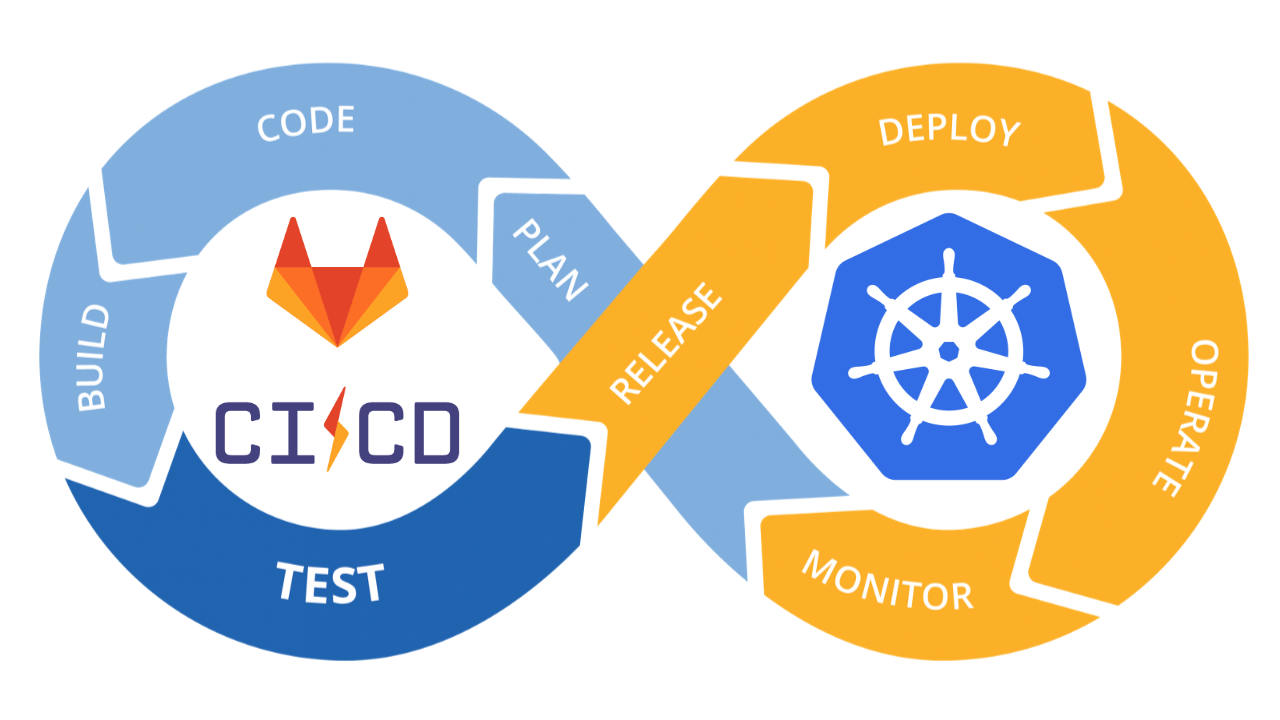
Pipelines, pipelines everywhere!
Good morning everyone, in this guide I'll show you an example of CI/CD for the deployment of a container holding a static html website. This example can easily be adapted to any kind of stateless deployment that needs continuous integration/deployment.
Here's the link to the example project I created specifically for this on gitlab.com: https://gitlab.com/nutellinoit/k8s-ci-cd-gitlab-example
I won't be using Gitlab's native Kubernetes integration; instead I'll simply use the kubectl command during the pipeline.
Requirements
- Familiarity with Docker
- A working Kubernetes cluster
Demo Project
The project tree looks like this:
├── build_container
│  ├── Dockerfile
│  └── test.sh
├── kubernetes_manual
│  ├── create_login_docker_registry.sh
│  └── namespace.yml
├── rootfs
│  ├── canary
│  └── index.html
├── kube-deployment.yml
├── .gitlab-ci.yml
└── README.md
The build_container folder contains the Dockerfile with the build directives, plus a test file we'll add to check afterwards whether the container was built correctly.
The rootfs folder contains our whole wonderful, phantasmagorical html website, made of an index.html file and a file I called canary, which we'll use to check that the container was built correctly.
It's going to be a phantasmagorical, automagical website!
Finally, in the project root we find the file we'll use to update the deployment on kubernetes, kube-deployment.yml, and the super important .gitlab-ci.yml file that configures the gitlab project's pipeline.
On top of these folders, I also added a folder with an example of the prerequisites needed to deploy to production (creating the namespace and creating any registry credentials to use for the pull, if the registry isn't public)
The .gitlab-ci.yml file
Let's start from the heart of the project, the file that defines the pipeline.
# This file is a template, and might need editing before it works on your project.
# Official docker image.
image: docker:latest

build_website:
  services:
  - docker:dind
  stage: build
  before_script:
  - docker login -u "$CI_REGISTRY_USER" -p "$CI_REGISTRY_PASSWORD" $CI_REGISTRY
  script:
  - rm -rf build_container/rootfs || true
  - cp -r rootfs build_container/rootfs
  - docker build --pull -t "$CI_REGISTRY_IMAGE":"$CI_PIPELINE_ID" build_container/
  - docker tag  "$CI_REGISTRY_IMAGE":"$CI_PIPELINE_ID" "$CI_REGISTRY_IMAGE":latest
  - docker push "$CI_REGISTRY_IMAGE":"$CI_PIPELINE_ID"
  - docker push "$CI_REGISTRY_IMAGE":latest
  - rm -rf build_container/rootfs || true

test_website:
  services:
  - docker:dind
  stage: test
  before_script:
  - docker login -u "$CI_REGISTRY_USER" -p "$CI_REGISTRY_PASSWORD" $CI_REGISTRY
  script:
  - >
    docker run -t --rm
    -p 80:80
    $CI_REGISTRY_IMAGE:$CI_PIPELINE_ID
    /test.sh

deploy_website:
  stage: deploy
  image: alpine:3.7
  environment:
    name: Production
  script:
  - apk update  && apk add --no-cache curl
  - curl -LO https://storage.googleapis.com/kubernetes-release/release/$(curl -s https://storage.googleapis.com/kubernetes-release/release/stable.txt)/bin/linux/amd64/kubectl
  - chmod +x ./kubectl && mv ./kubectl /usr/local/bin/kubectl
  - mkdir -p $HOME/.kube
  - echo $KUBE_CONFIG > ~/.kube/config
  - kubectl -n hellocicd get pods
  - sed -i "s/latest/$CI_PIPELINE_ID/g" kube-deployment.yml
  - kubectl -n hellocicd create -f kube-deployment.yml || true
  - kubectl -n hellocicd apply -f kube-deployment.yml
We'll use three stages: build, test and deploy.
Build
The first stage, the build one, takes care of running:
build_website:
  services:
  - docker:dind
  stage: build
  before_script:
  - docker login -u "$CI_REGISTRY_USER" -p "$CI_REGISTRY_PASSWORD" $CI_REGISTRY
  script:
  - rm -rf build_container/rootfs || true
  - cp -r rootfs build_container/rootfs
  - docker build --pull -t "$CI_REGISTRY_IMAGE":"$CI_PIPELINE_ID" build_container/
  - docker tag  "$CI_REGISTRY_IMAGE":"$CI_PIPELINE_ID" "$CI_REGISTRY_IMAGE":latest
  - docker push "$CI_REGISTRY_IMAGE":"$CI_PIPELINE_ID"
  - docker push "$CI_REGISTRY_IMAGE":latest
  - rm -rf build_container/rootfs || true
....
Step by step:
- Before running the script commands, the build process logs into the project's registry using gitlab system environment variables that are already set (on gitlab they're set by default)
- The
build_container/rootfsfolder is cleaned up, in case it's there for some reason - The contents of the
rootfsfolder are copied recursively into thebuild_containerfolder, so that during the build Docker can copy them into the image, since build_container is the context. - The build is run from the build_container folder, naming the image with the name gitlab gives it, in our case
registry.gitlab.com/nutellinoit/k8s-ci-cd-gitlab-example, and tagging it with the pipeline id - The
latesttag is added - Both images are pushed
- The rootfs folder inside
build_containeris cleaned up
Test
Once the build is done, we'll check whether our static website's files were actually added to the right directory. We'll use the test.sh script, which is nothing more than a check that the canary file exists in the /usr/share/nginx/html folder
#!/usr/bin/env sh

if [ ! -f /usr/share/nginx/html/canary ]; then
    echo "something wrong"
    exit 127
fi
So our stage will be the following:
...
test_website:
  services:
  - docker:dind
  stage: test
  before_script:
  - docker login -u "$CI_REGISTRY_USER" -p "$CI_REGISTRY_PASSWORD" $CI_REGISTRY
  script:
  - >
    docker run -t --rm
    -p 80:80
    $CI_REGISTRY_IMAGE:$CI_PIPELINE_ID
    /test.sh
...
Step by step
- As before, the process has to log into the registry before pulling the container
- We start the container we just built, using the id of the current pipeline, with our
test.shfile as the main entrypoint
This way, if our build didn't go as it should for some reason, we can stop the deploy.
Deploy
Deploy requirements
This is where things get interesting. We'll need:
- A kubeconfig file containing the credentials to access the cluster
- Python, to run a one-liner from the command line that turns it from yaml into json
- A namespace already set up on kubernetes, in our case it must be called
hellocicd, plus whatever permissions are needed to interact with it
So let's start by converting our kubeconfig file to json, running the command:
python -c 'import sys, yaml, json; json.dump(yaml.load(sys.stdin), sys.stdout, indent=4)' < kubeconfigdemo.yml > kubeconfigdemo.jsonNow let's take our json and head over to gitlab. We need to add a pipeline variable in the project settings, KUBE_CONFIG. Here's a short video guide:
[Gitlab Video: image not recovered]
With that done, we're ready to look at the deploy stage
deploy_website:
  stage: deploy
  image: alpine:3.7
  environment:
    name: Production
  script:
  - apk update  && apk add --no-cache curl
  - curl -LO https://storage.googleapis.com/kubernetes-release/release/$(curl -s https://storage.googleapis.com/kubernetes-release/release/stable.txt)/bin/linux/amd64/kubectl
  - chmod +x ./kubectl && mv ./kubectl /usr/local/bin/kubectl
  - mkdir -p $HOME/.kube
  - echo $KUBE_CONFIG > ~/.kube/config
  - kubectl -n hellocicd get pods
  - sed -i "s/latest/$CI_PIPELINE_ID/g" kube-deployment.yml
  - kubectl -n hellocicd create -f kube-deployment.yml || true
  - kubectl -n hellocicd apply -f kube-deployment.yml
Step by step
- We use the alpine image and install the kubectl utility to interact with the kubernetes cluster
- We create the
.kubefolder inside the current home (it's the default folder thekubectlutility uses to load its config) - We copy our JSON, stored in the
KUBE_CONFIGpipeline variable, into the~/.kube/configfile - We replace "latest" in the kubernetes deployment file with the pipeline id, so the container always runs the exact image matching the pipeline
- We create the deployment if it doesn't exist (the
|| trueis there in case it does exist: we don't want the deploy process to stop) - We update the deployment
If all goes well, we end up with our brand new deployment in our kubernetes cluster!
$ kubectl -n hellocicd get pods
NAME                                 READY     STATUS    RESTARTS   AGE
hellocicd-webiste-78d566856d-9xhq6   1/1       Running   0          3m
see you next time!
$ cat ~/archivio/gitlab-com-ci-cd-di-un-sito-statico-su-kubernetes.md
WARNING: this file is from 2018.
I wrote it, but a me from a few years ago: it may no longer reflect what I think or what I can do.
NOTE: machine translation from Italian, the original is here.
Continue? [y/N]